Burning Bridges AI Video Examples: Length and Resolution
Compare Burning Bridges AI video settings by photo, duration, and resolution. Learn which 15- or 28-second option fits and see the landscape 16:9 output details.
What these examples show
The four clips in the homepage examples section are real generated videos made with the same party-scene template and different lead looks. They are product samples, not customer testimonials. This article also uses a settings diagram to compare the available lengths and resolutions. The product currently offers one party-scene style, with choices for 15 or 28 seconds and 480p or 720p.
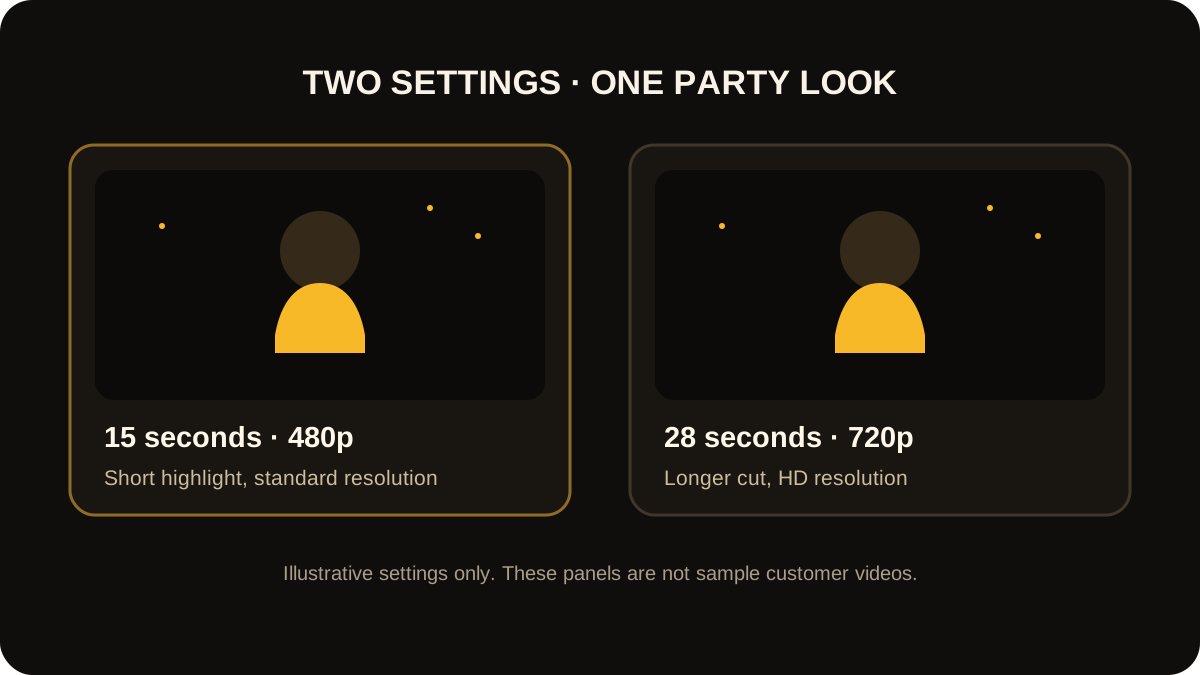
A settings comparison, not a generated-video frame.
To watch the generated clips, visit Examples on the generator page. To make a version from your own image, try the Burning Bridges AI video generator.
Example 1: a clear single-person portrait
Photo: one person, facing the camera, with even light and a sharp image.
Video: the person is the lead in the party-scene template.
Suggested setting: 15 seconds at 480p for a shorter highlight.
This setup gives the generation a clear lead image. It is a good first choice when you want a quick clip for a message or a short-form post. It does not guarantee a particular gesture or frame; generated movement can vary.
Example 2: a sharper output for a larger display
Photo: one person, clear from head to torso, with no strong backlight.
Video: the same party-scene style in a longer cut.
Suggested setting: 28 seconds at 720p when you want more duration and detail.
This combination costs 600 credits. If the credit cost matters more than extra resolution, 28 seconds at 480p uses 300 credits. Both exports use a landscape 16:9 frame: 854 × 480 at 480p and 1280 × 720 at 720p.
Example 3: a group or low-light image
Photo: several people in one frame, or one person too far away to see clearly.
Video: the lead can be ambiguous or lose detail.
Better choice: pick a different image with one person in focus and even light.
The product asks for one lead photo. A group input is not the intended way to add friends to the clip; the scene already includes a party crowd. For input comparisons and fixes, see the photo quality guide.
What changes between settings?
| Setting | What changes | Credit use |
|---|---|---|
| 15 seconds, 480p | Shorter highlight at standard resolution | 100 |
| 15 seconds, 720p | Shorter highlight at HD resolution | 300 |
| 28 seconds, 480p | Longer cut at standard resolution | 300 |
| 28 seconds, 720p | Longer cut at HD resolution | 600 |
Duration and resolution change the exported clip. They do not change the source party scene. There is no prompt box in the current workflow, and the diagram above is not a generated output preview. The homepage gallery contains real generated outputs; individual results can still vary by photo and generation.
The download is MP4 by default, though some results may be WebM. The output may retain audio from the configured source video; check the finished file's sound and watermark before sharing. The product does not grant music rights.
Frequently asked questions
Are these generated videos or diagrams?
The four videos in the homepage gallery are real generated outputs. They are product examples, not customer testimonials. The visual above is only a settings diagram.
Can I choose different clothes or a new location?
The current standard workflow focuses on one party-scene template. It does not offer a text prompt for custom outfits, camera directions, or locations.
Which settings are a good first attempt?
Choose 15 seconds at 480p if you want the shortest, lowest-credit option. Use 28 seconds or 720p when the longer duration or extra resolution matters more.
For the exact steps, read how to make a Burning Bridges AI video. Then create your own version from one photo.