
How to Make a Burning Bridges AI Video from One Photo
Follow the steps to make a Burning Bridges AI video from one photo: upload a supported image, choose length and resolution, generate, preview, and download.
How do you make a Burning Bridges AI video?
Upload one clear photo of the person who will lead the scene, choose a 15- or 28-second video at 480p or 720p, and start generation. No editing app or written prompt is required. When processing finishes, preview the result in My videos and download it.
The generator uses a fixed indoor party scene with an AI-created crowd. The exported video is landscape 16:9; it is not a full-screen vertical 9:16 file. To begin, open the generator.
Before you start: choose a photo
Use one JPG, PNG, or WebP image no larger than 10 MB. A sharp, evenly lit photo with one clearly visible person gives the model a clear lead image. Avoid group photos, very small faces, motion blur, strong backlighting, and heavy filters. The upload form does not publish a minimum pixel dimension.
Only upload an image you have the right to use, and get consent from the person shown. The service is not intended for photos of minors. Read the privacy policy if you want to understand how uploaded images and completed videos are handled.
Step-by-step: make your video
1. Open the create form and upload one image
Go to the generator on a phone or desktop browser. Choose the main character photo from your device. The current form accepts one image per video and checks that its actual file type is JPG, PNG, or WebP and its size is 10 MB or less.
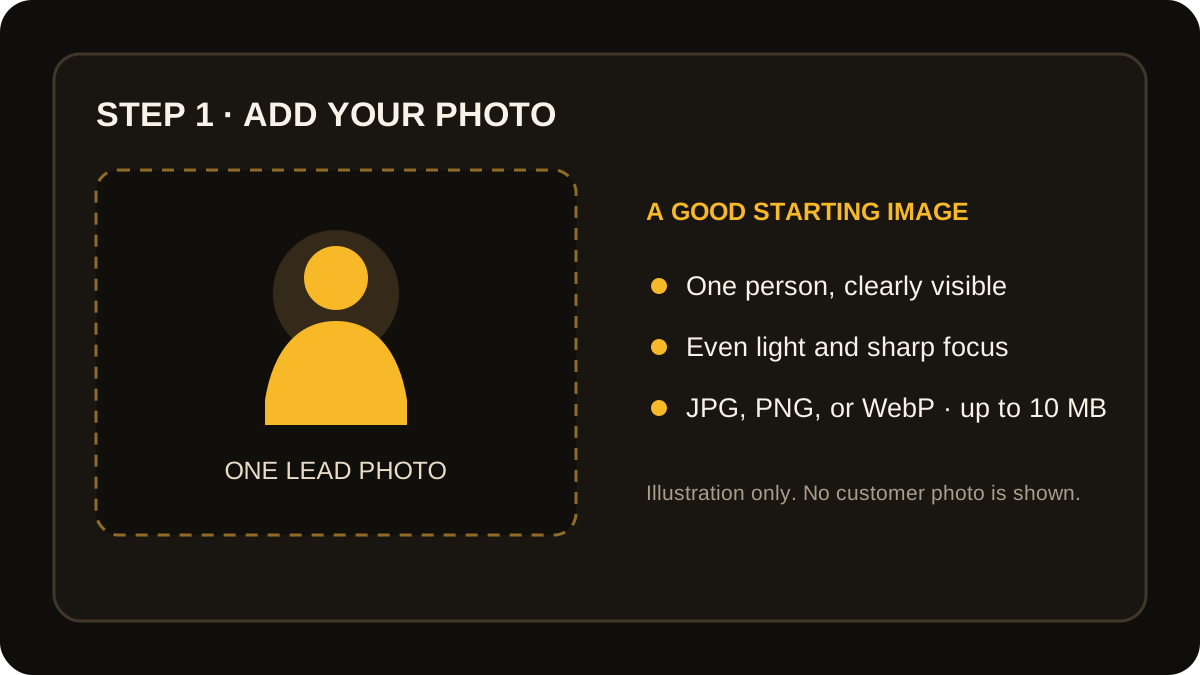
This diagram explains the upload step; it is not a product screenshot or a generated result.
2. Choose video length and resolution
Choose 15 or 28 seconds, then select 480p or 720p. The scene and actions stay preset. These controls do not let you add a room, choose friends from extra photos, or direct a camera with a prompt.
| Video option | Credits used |
|---|---|
| 15 seconds at 480p | 100 |
| 15 seconds at 720p | 300 |
| 28 seconds at 480p | 300 |
| 28 seconds at 720p | 600 |
The amount beside Generate shows the cost for your selected options before the task starts. Credit packs are one-time purchases: $9.99 for 100 credits, $19.99 for 300, or $39.99 for 1,000. There is no recurring subscription.
3. Start generation and watch the status
Confirm that you have permission to use the photo and start the task. The site estimate is usually 5–10 minutes, but queue and processing times vary. Follow the on-page task status while it runs.
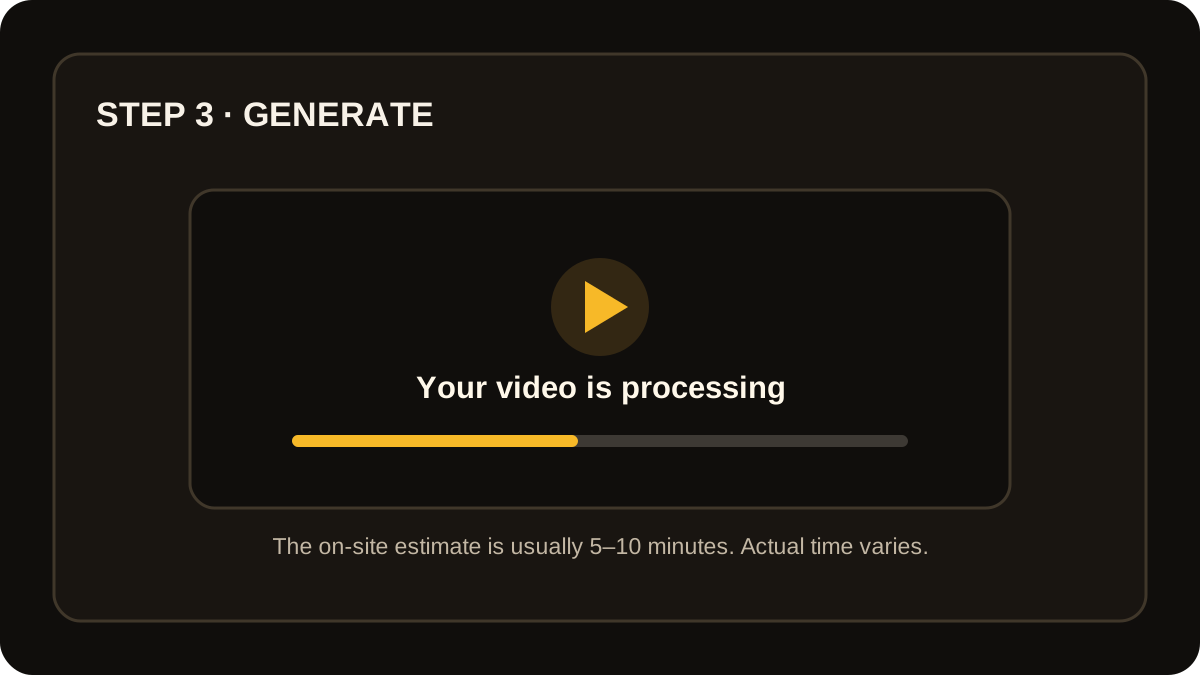
This is a generic status illustration, not a screenshot of an account.
If a task fails for a technical or provider-safety reason and the account has complied with the Terms, charged credits are returned when it is marked failed. Check the error message before trying again.
4. Preview, check, and download
When the task is complete, select the result in My videos and preview it before downloading. The default download is MP4; some completed videos may be WebM. The output is 16:9 landscape at 854 × 480 for 480p or 1280 × 720 for 720p.
The generation can retain audio from the configured source video. Check the audio in your own result before sharing; the product does not provide a separate music license. The current product information also does not promise that every file is watermark-free, so inspect the exact download before using it.
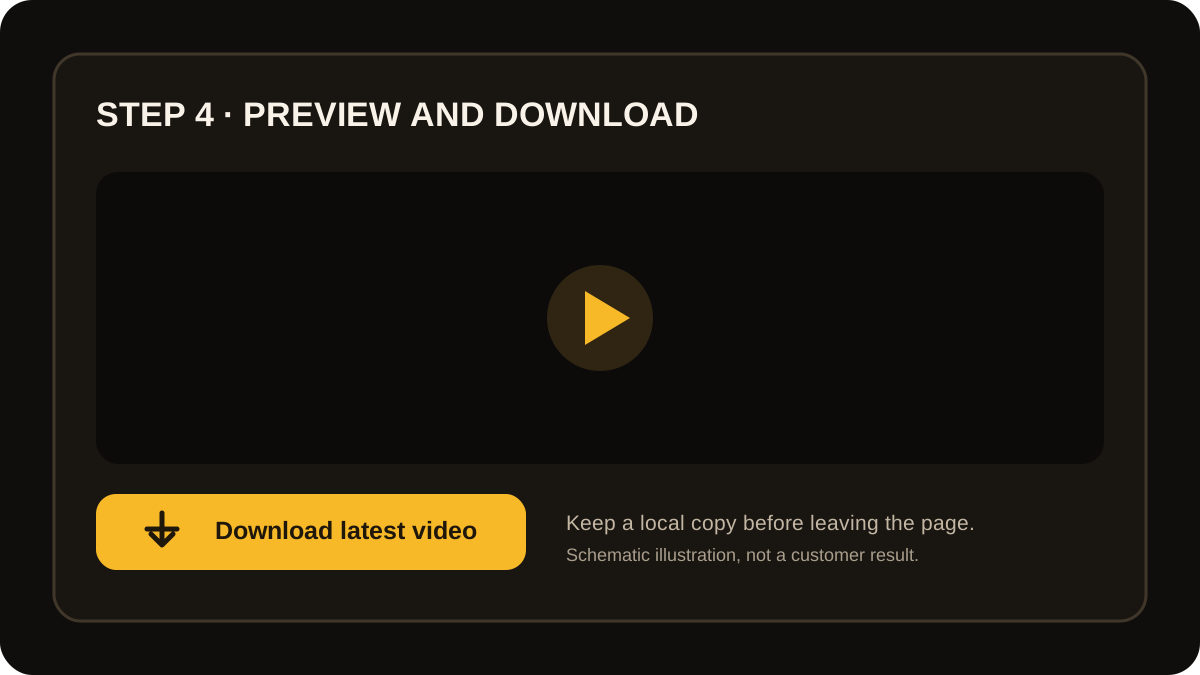
The illustration shows the preview-and-download step, not a customer result.
Photo and output tips
- Use a clear face with even light; a higher resolution cannot restore details missing from a blurry photo.
- Choose one lead person per video. The surrounding party crowd is part of the preset scene.
- Start with 480p if the lower credit cost matters. Choose 720p if you want the higher available resolution.
- The output is landscape. Crop or reframe it in an editor if your final post needs a vertical 9:16 frame.
- Check the finished clip's audio, framing, and watermark before publishing.
- Use platform music and AI-label options according to the rules for your account and region.
For side-by-side photo examples, see Burning Bridges AI video quality tips. For common upload and generation issues, see Burning Bridges AI video mistakes and fixes.
Frequently asked questions
Do I need to write a prompt?
No. The current generator uses a preset party scene. Upload one photo and choose the length and resolution.
Can I add several friends to the same video?
The current form accepts one lead photo. The party crowd is generated as part of the scene; it does not place named friends from extra uploads into the video.
How long are the videos?
Choose 15 or 28 seconds. The four length-and-resolution combinations use between 100 and 600 credits.
Does the result include Drake's original recording?
The output may retain audio from the configured source video, so check the finished file. The product does not grant rights to the original recording. Use audio you are allowed to post or select a track from the destination platform's licensed music library.
Can I make the result vertical?
The generator exports landscape 16:9 video. Use a video editor to crop or reframe it if you need a full-screen vertical post.
Ready to try the workflow? Start with one photo.